

Video Description
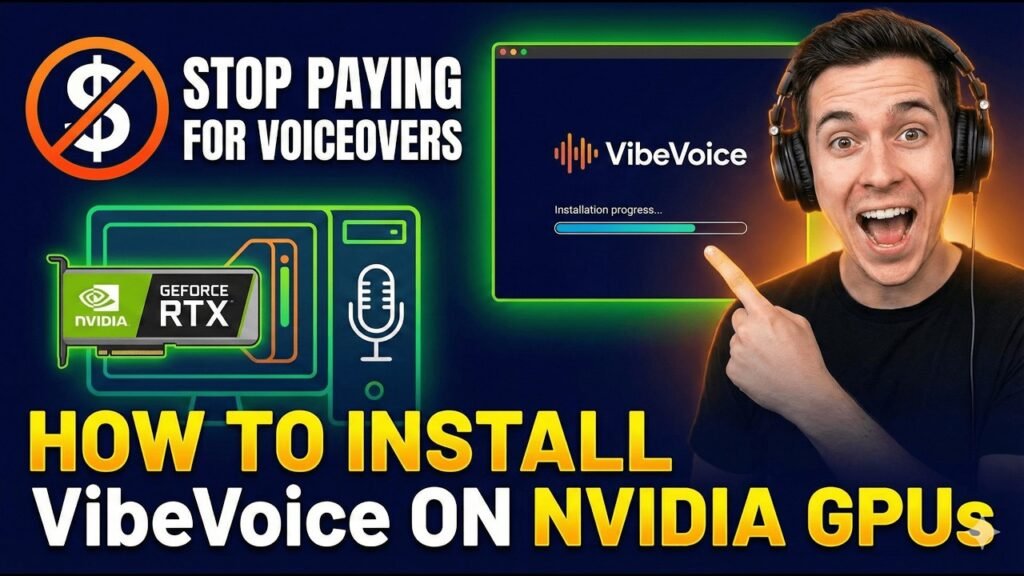
About the video In this video, I explore a powerful alternative to expensive commercial voiceover services: Microsoft VibeVoice. After spending hundreds of dollars on commercial projects, I discovered this incredible tool that allows you to produce high-quality, unlimited text-to-speech right on your own computer.
I walk you through my custom installation method using Conda (which fixes some issues with the original instructions), show you how it performs on a modest Nvidia RTX 3050 laptop GPU, and guide you step-by-step through the setup process. Finally, we take a serious look at the ethical implications of this technology and how it is changing the landscape of security and scams.
What you will learn
How to assess your hardware for local AI generation.
How to install and configure the necessary environment using Anaconda and Git.
How to obtain a Hugging Face token for model access.
How to run the VibeVoice web interface and generate audio.
The dangers of AI voice technology regarding scams and elderly protection.
What is required
An Nvidia GPU (RTX 3050 or higher recommended).
CUDA Version 12.4 or compatible.
Git installed on your system.
Anaconda or Miniconda installed.
A Hugging Face account (Free).
Links
My Custom GitHub Repository: https://github.com/microsoft/VibeVoice/
Original VibeVoice Project: https://github.com/foremanlearning/VibeVoice/
Hugging Face: https://huggingface.com/
Anaconda: https://www.anaconda.com/download
Git: https://github.com/git-guides/install-git
Chapter Timecodes
00:00 Intro: Why I switched to free AI Voiceovers
00:41 What is Microsoft VibeVoice?
00:54 Audio Sample: War of the Worlds
02:18 Hardware Specs: Testing on an RTX 3050 (4GB VRAM)
02:48 Why I created a custom Conda fork
03:20 Required Software: Git & Anaconda
03:54 Checking your GPU and CUDA version
04:48 Step 1: Cloning the Repository 05:05 Step 2: Creating the Conda Environment
05:52 Step 3: Activating the Environment
06:28 Step 4: Setting up the Hugging Face Token
07:30 Step 5: Running the Realtime Demo Script
08:16 Using the Web Interface (Localhost)
10:23 Important: The Ethics and Dangers of AI Voice Cloning
13:05 Conclusion & Future Content
Source